 Deadbolt
How it works
Three taps to
a quiet phone.
Deadbolt runs on Apple's Screen Time framework — the same system that powers iOS app limits — but built to be much harder to wriggle out of.
Grant Screen Time access
On first launch, Deadbolt asks for Apple’s Screen Time permission. This is what lets it block apps — and it’s what keeps your app choices private, sealed inside Apple’s framework.
Pick your distractions
Choose the apps and categories you can’t stop opening. Deadbolt sees them only as private tokens — never the names. Save them as a blocklist to reuse in one tap.
Set a duration and bolt it
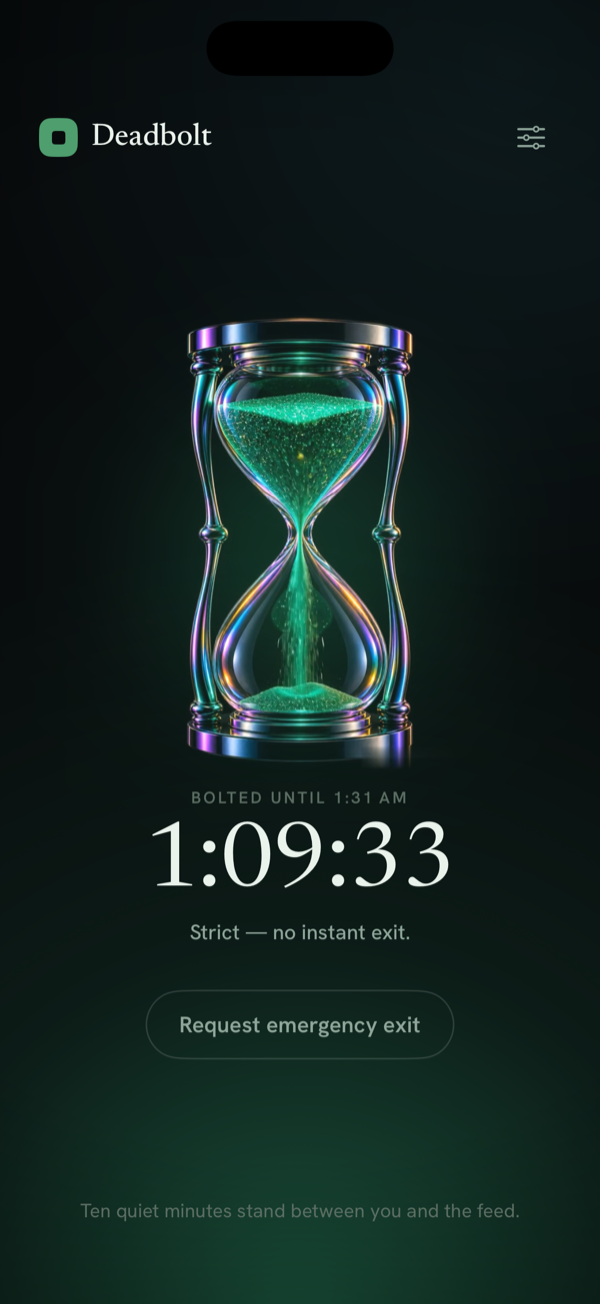
Spin the dial to how long you need, then tap Bolt it. Those apps are now locked. Open one and you’ll get a locked screen instead — with a little attitude.
Make the exit earn it
In Strict Mode there’s no instant unlock. Leave early only after a ten-minute cooldown, or by walking 200 steps. The friction is the point.
Let schedules do it for you
Set recurring daily blocks and Deadbolt locks the apps automatically — overnight, at work, while you study — even when the app is closed.
The locked screen
Reaching for the feed?
Not tonight.
Open a bolted app and Deadbolt shows a locked screen instead of the endless scroll — a small, dry reminder of what you decided a minute ago.