 Deadbolt
Article · November 14, 2026 · by the Doveling team
How to Turn Your iPhone Into a Dumb Phone (Without Buying a New One)
Five changes you can make tonight, and the one thing iPhone settings can’t do.
Every few months the same wish comes back: I should just get a dumb phone. Calls, texts, maybe a camera. No feeds, no infinite scroll, no 40 minutes gone before you’ve even stood up.
Then real life gets in the way. You need maps to get somewhere new. Your bank sends codes through an app. Your family is on a group chat that only works on a smartphone. The second phone ends up in a drawer, and you’re back on the first one.
What most people want isn’t a worse phone. It’s a phone with fewer doors: the useful apps up front, and the bottomless ones out of reach.
The good news is that your iPhone can get surprisingly close to that already.
A note before we start: we’re the small team at Doveling behind Deadbolt, an iPhone app blocker, so we have a stake in this. Everything in steps 1 to 5 works without our app.
(Menu names below are from recent versions of iOS. They sometimes move slightly between updates.)
1. Take the color away
Go to Settings → Accessibility → Display & Text Size → Color Filters, turn them on and choose Grayscale.
It sounds too simple to matter. Apps are designed around color, though: the red badges, the bright thumbnails, the little dopamine of a colorful feed. Take it away and a lot of the pull goes with it.
There’s some evidence for this. In a 2020 study of US college students published in The Social Science Journal, switching phones to grayscale for about a week cut daily screen time by roughly 38 minutes, mostly from social media and browsing. A later trial with medical students found a smaller drop, around 28 minutes a day. These are small studies, but the change is free and takes ten seconds.
Tip: in Settings → Accessibility → Accessibility Shortcut, choose Color Filters. Now a triple-click of the side button switches grayscale on and off, for when you actually need color (photos, maps).
2. Build one Home Screen of tools
A dumb phone has one screen of things that do a job. Copy that.
Keep only tools on your Home Screen: Phone, Messages, Maps, Camera, Calendar, Notes, your bank, maybe music. Press and hold everything else, choose Remove App → Remove from Home Screen. The apps still live in the App Library, so nothing is deleted.
Then go to Settings → Home Screen & App Library and set new app downloads to App Library Only, so nothing new sneaks back onto your Home Screen.
Search will still find anything in a second. That’s fine. The goal here isn’t a wall. It’s making the feed something you have to go looking for instead of something that’s waiting for you.
3. Only people get to interrupt you
A dumb phone buzzes when a person wants you. A smartphone buzzes when an app wants you.
Go through Settings → Notifications and turn off notifications for every app that isn’t a person talking to you: social apps, shopping, news, games. Keep Messages, calls and the few chats that matter.
For the rest, Scheduled Summary (in the same Notifications screen) collects them into one or two deliveries a day instead of a drip all day long.
4. Make a “dumb phone” Focus
Focus modes can hide whole Home Screen pages. That makes them a decent dumb-phone switch.
In Settings → Focus, create a new Focus. Allow notifications only from the people you choose. Under Customize Screens, pick a Home Screen page that holds only your tools. Then add a schedule, say every evening from 8 PM, or every Saturday.
When the Focus turns on, your phone looks and behaves like a simpler phone. When it turns off, everything comes back.
5. Try the dumb phone hiding inside iOS
Few people know this exists: Settings → Accessibility → Assistive Access.
Assistive Access turns the whole iPhone into a stripped-down interface with big buttons and only the apps you pick. It was designed for people with cognitive disabilities, and it’s the closest thing to a real dumb phone that ships with iOS. To leave it, you triple-click the side button and enter your passcode.
It takes a few minutes to set up, and some apps run in a simplified form. As a weekend experiment, though, it’s genuinely eye-opening.
The part settings can’t do
Here’s the honest catch. Every one of those five steps can be undone in about two seconds by the same person who set it up. Turn grayscale off. Swipe to the App Library. End the Focus. Type the passcode you know.
A real dumb phone works because the apps simply aren’t there. There’s nothing to undo at 11 PM. That’s the gap between a simpler phone and a dumb one, and willpower alone doesn’t close it. (We wrote about why in our last piece, on why Screen Time limits don’t hold.)
This is the gap we built Deadbolt for. Its Allow only these mode flips blocking around: instead of listing the apps to lock, you list the few apps you’re allowed, say Phone, Messages, Maps and Camera, and everything else is locked until the timer runs out. The lock runs through iPhone’s own Screen Time system, so closing Deadbolt doesn’t end it. In Strict mode, leaving early costs time or steps instead of a tap.
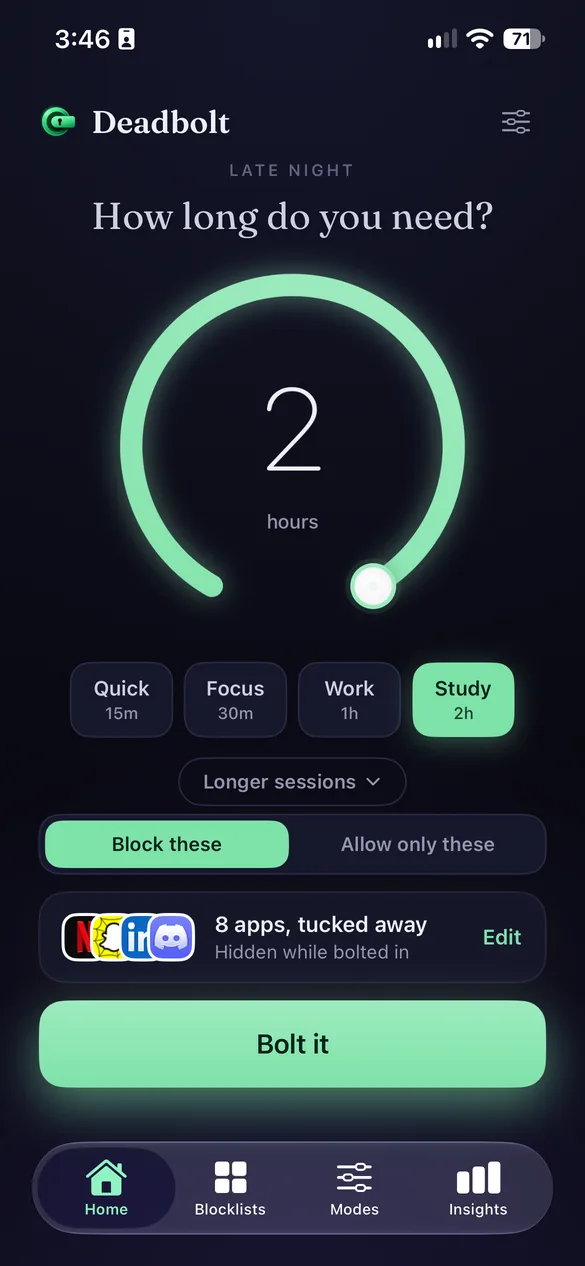
“Allow only these” flips the list: pick the few apps you keep, and everything else locks.
You can also put it on a schedule, so your phone turns into a dumb phone at the same time every day, without a decision to make in the moment.
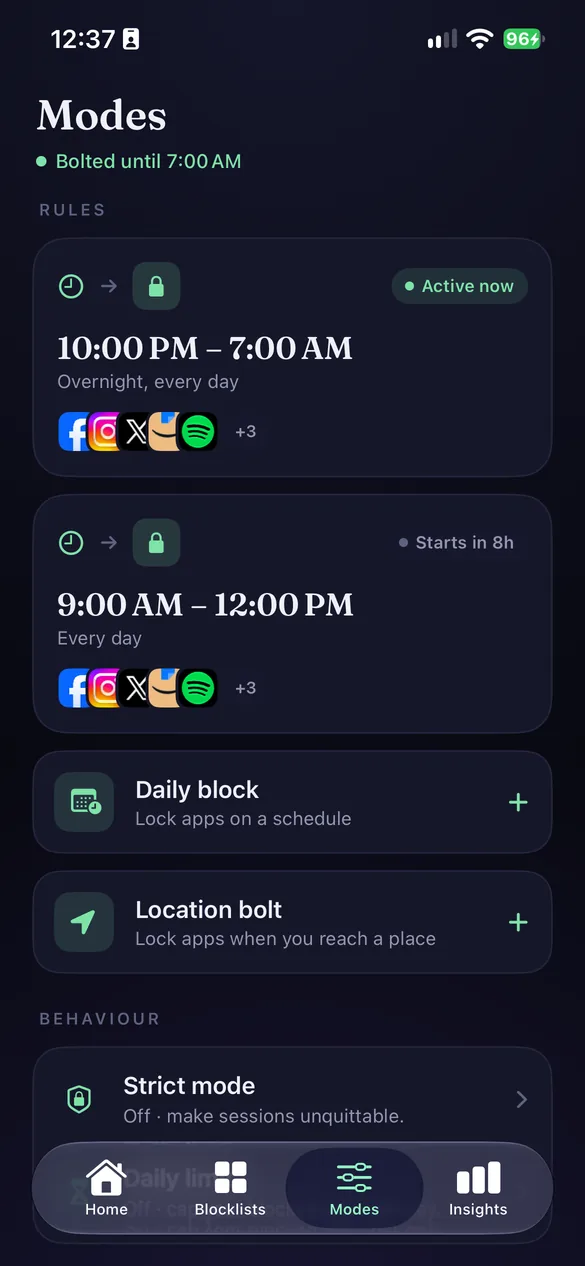
A daily lock from 10 PM to 7 AM. Set it once, and there’s nothing to decide at night.
Deadbolt is free to start, with 15-minute locks twice a day and a nightly Bedtime lock. Allow only, Strict mode and longer sessions are part of Deadbolt Pro. (The short version of the Deadbolt setup is in our guide to dumb phone mode on iPhone.)
A 20-minute dumb-phone setup
- Grayscale on, with the triple-click shortcut for when you need color.
- One Home Screen of tools. New apps go to the App Library only.
- Notifications only from people. Everything else goes to a Scheduled Summary.
- A “dumb phone” Focus on a schedule, with a tools-only Home Screen page.
- For the hours that matter most, a lock you can’t undo in two seconds.
You don’t need a second phone. You need fewer doors, and a few of them locked.
Doveling makes small iPhone apps for better habits. More at doveling.app.
Fewer doors, not a worse phone.
Free to start. Bolt your first distraction in under a minute.